

Start a session
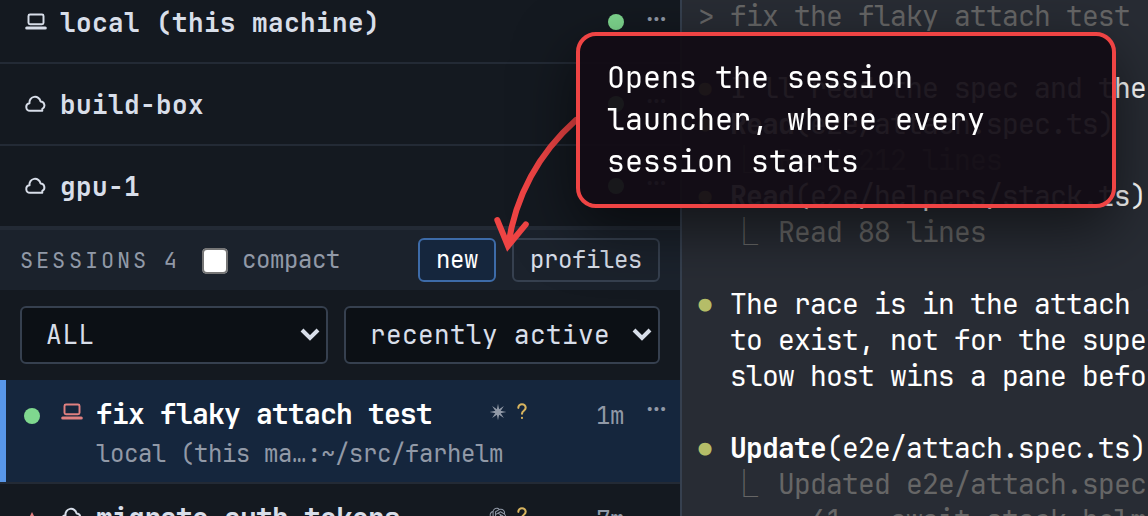
When you launch, the launcher closes, the new session appears in the session list, and its terminal opens, ready for your first prompt.
The launcher at a glance
Section titled “The launcher at a glance”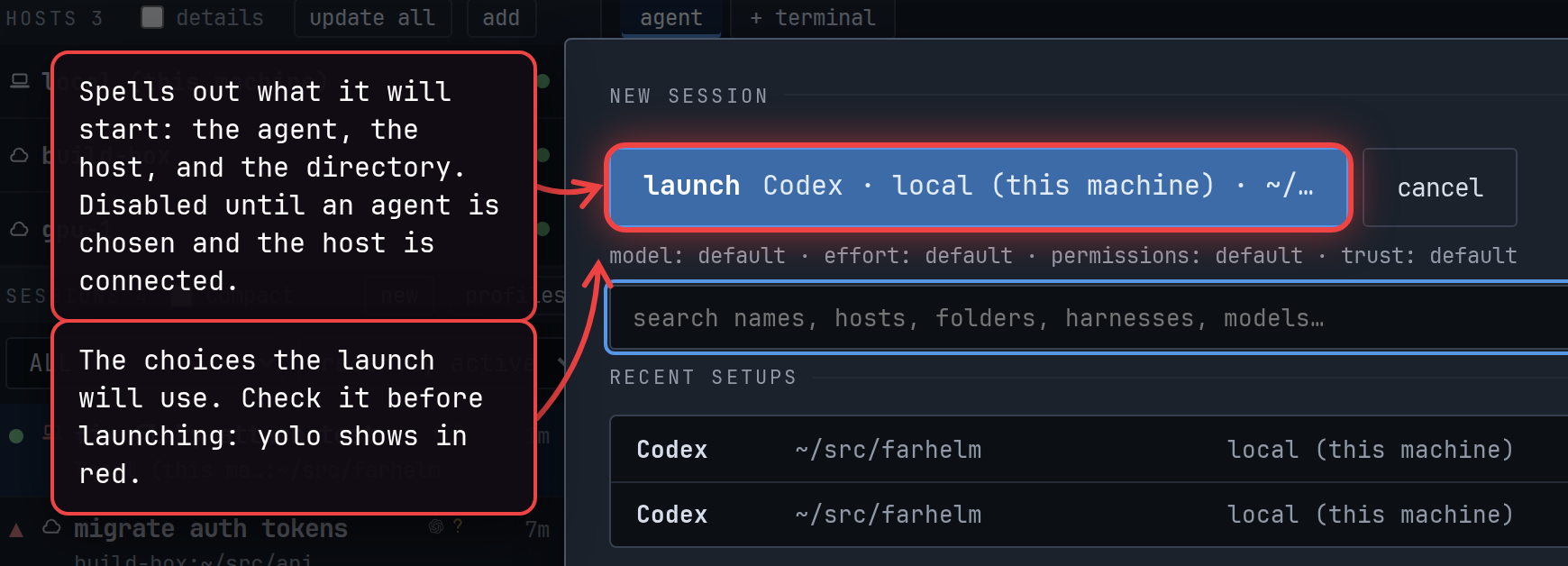
cancel, Escape, or a click outside the launcher closes it and forgets your choices. reset choices clears the agent and its choices but keeps the host and directory.
Choose where it runs
Section titled “Choose where it runs”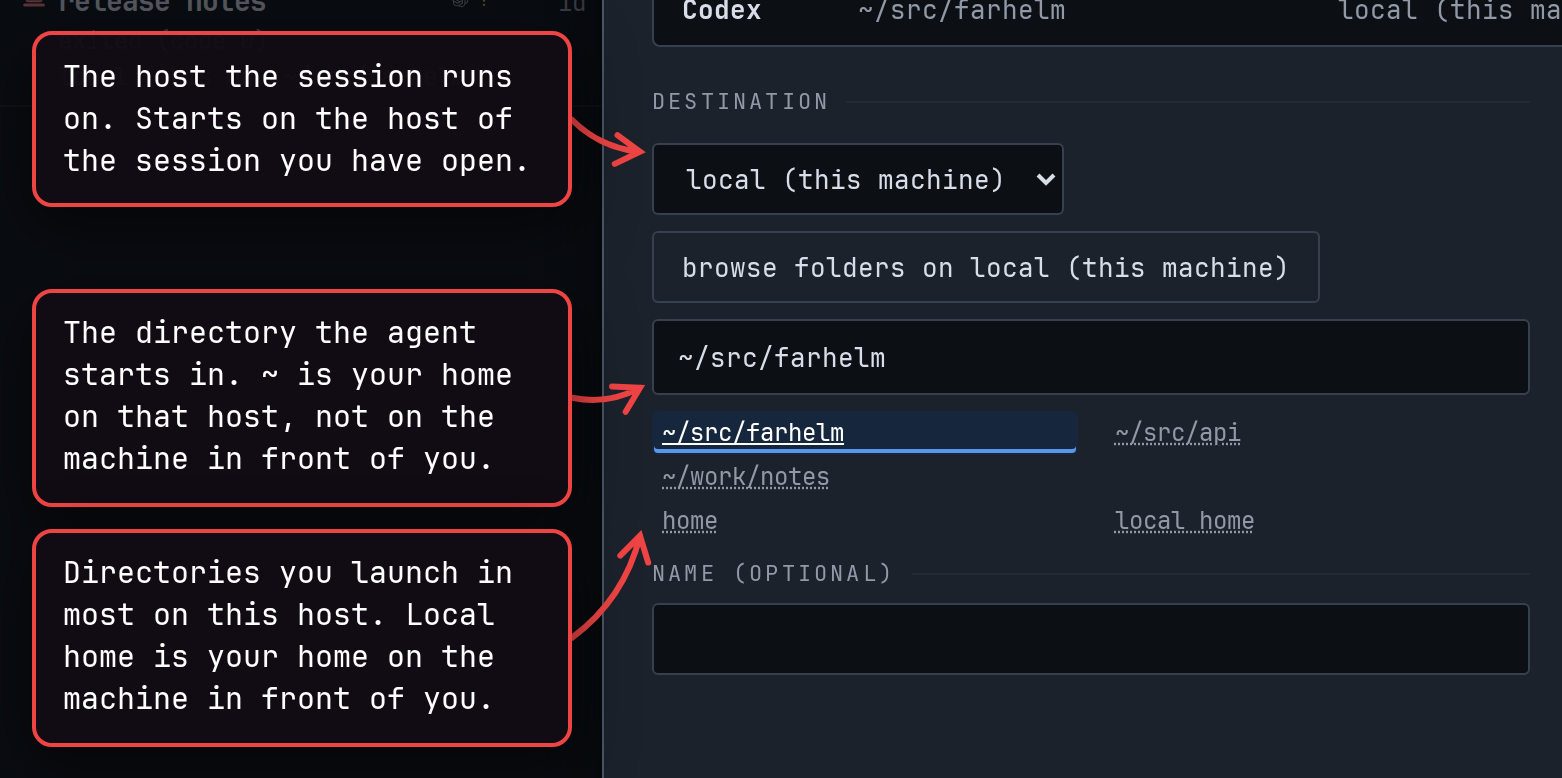
With no session open, the host menu starts on the machine you are using, listed as local (this machine). A host that is not connected right now shows its state next to its name, such as “unreachable, retrying”, and you cannot launch on it until it is back. Add a remote host covers adding hosts.
browse folders on the host lists its directories one level at a time, for when you would rather find a directory than type it. name (optional) names the session in the session list; leave it empty and Farhelm picks a name.
Choose the agent and how it runs
Section titled “Choose the agent and how it runs”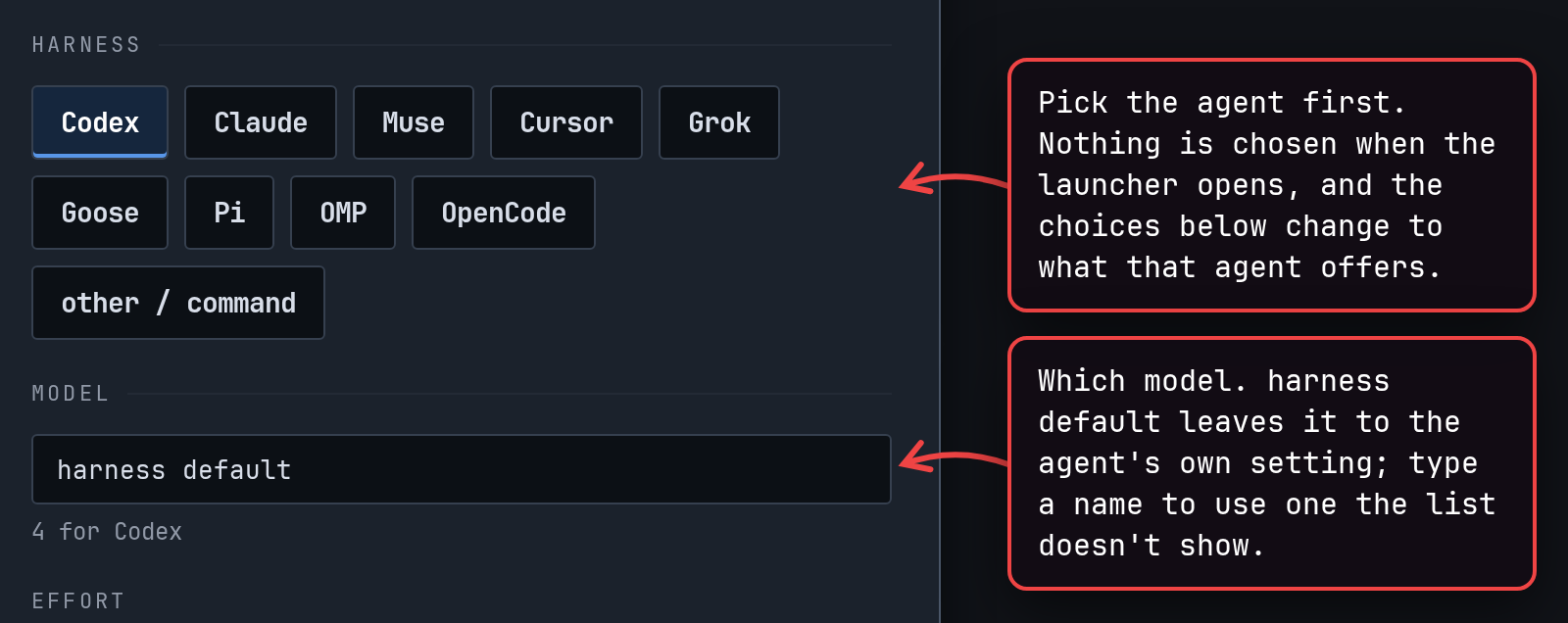
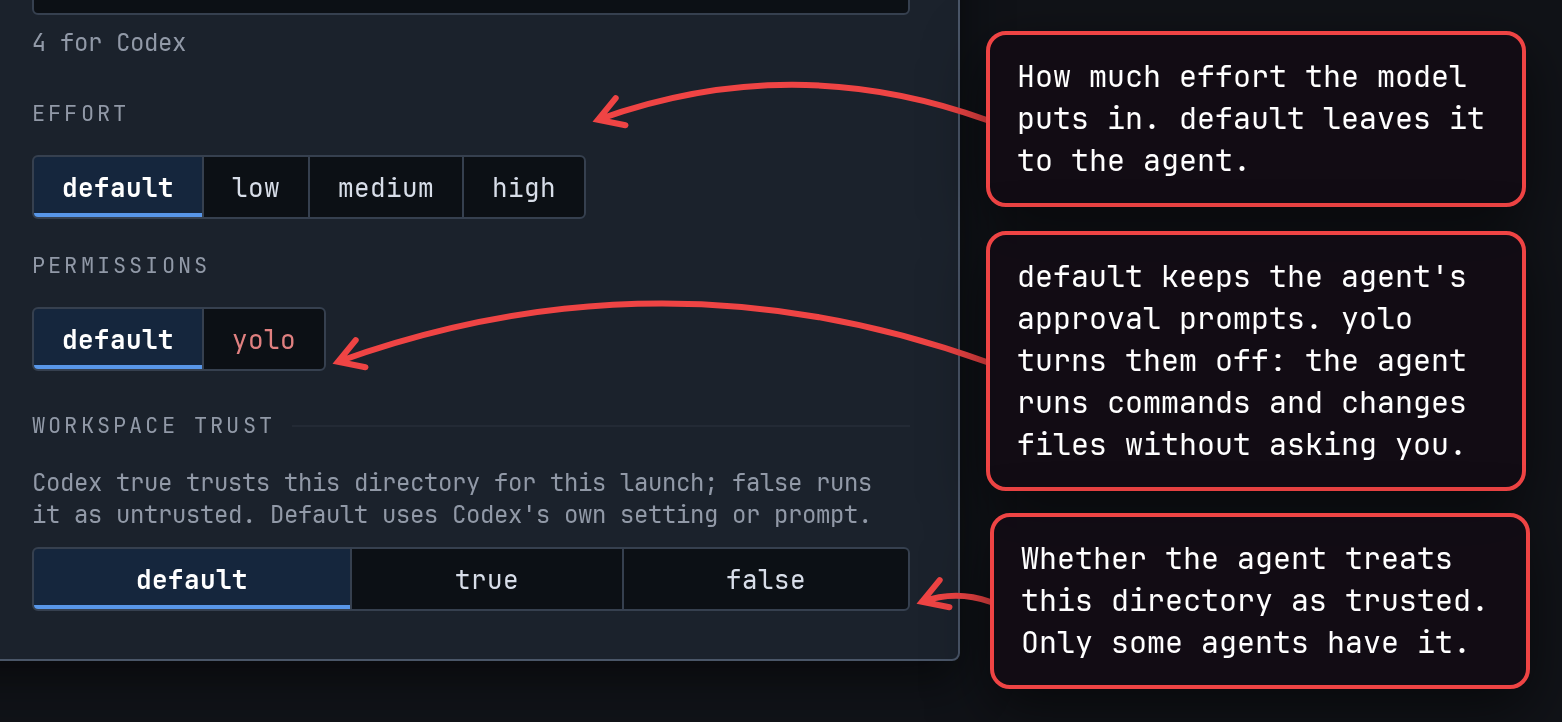
Not every agent has every choice, and some offer more permission modes than these two. Switching to another agent clears any choice it cannot take, and the launcher tells you when it does. Supported agents lists what each agent offers; workspace trust is explained on the Codex, Muse, and Pi pages. To run something that is not one of these agents, choose other / command, covered in Custom commands and profiles.
NOTE: The launcher remembers the permissions of your last launch, wherever you launched it from. After one YOLO launch, the next launcher opens on yolo too.
Confirm a YOLO launch
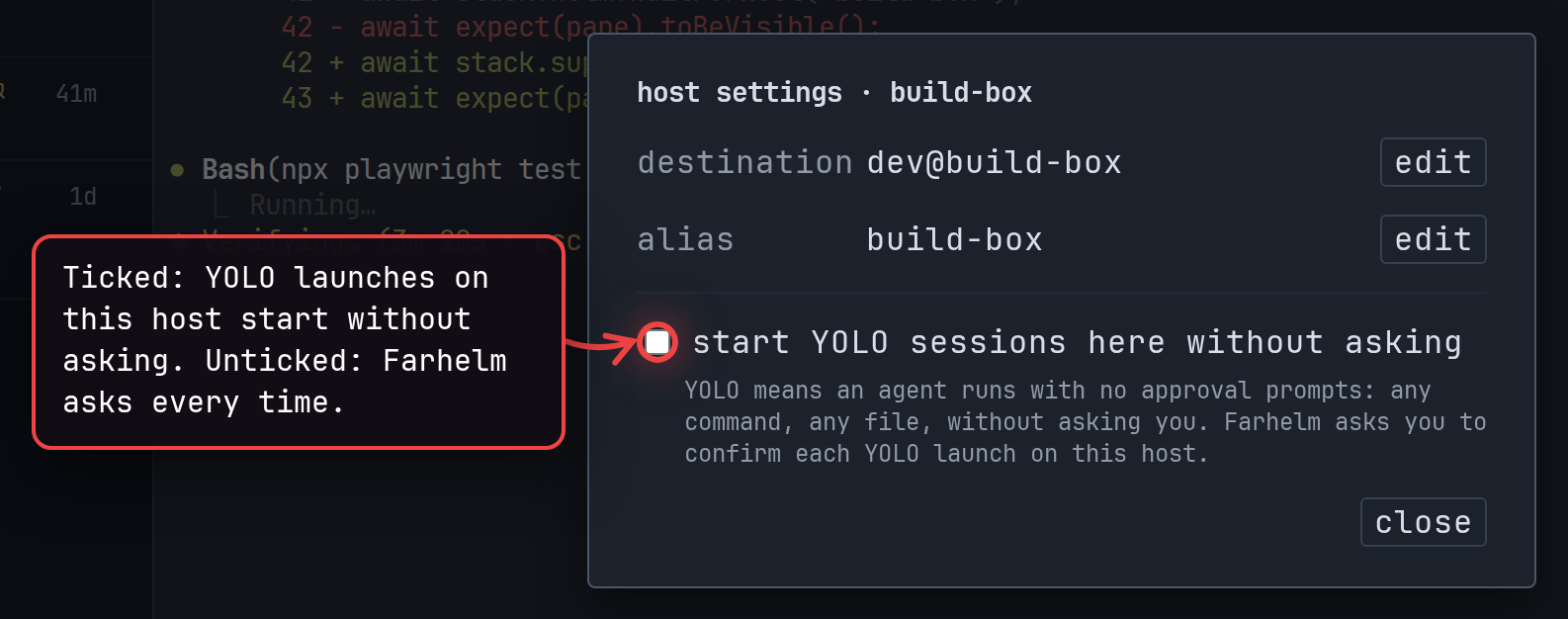
Section titled “Confirm a YOLO launch”Before a YOLO launch, Farhelm asks you to confirm. Every host asks until you tell it not to.
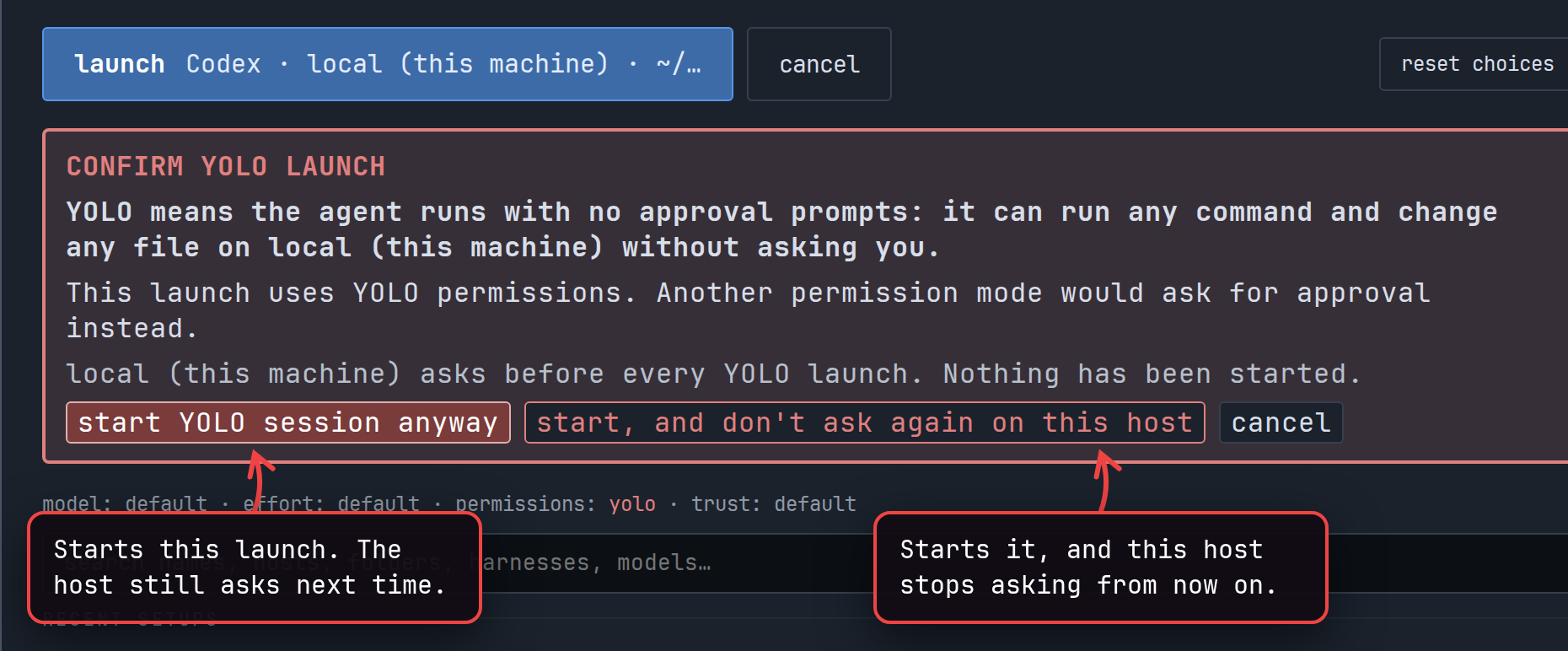
It is not only the yolo choice that asks. Farhelm offers Pi only in YOLO mode, so every Pi launch asks, and so does a custom command that turns off its agent’s approval prompts.
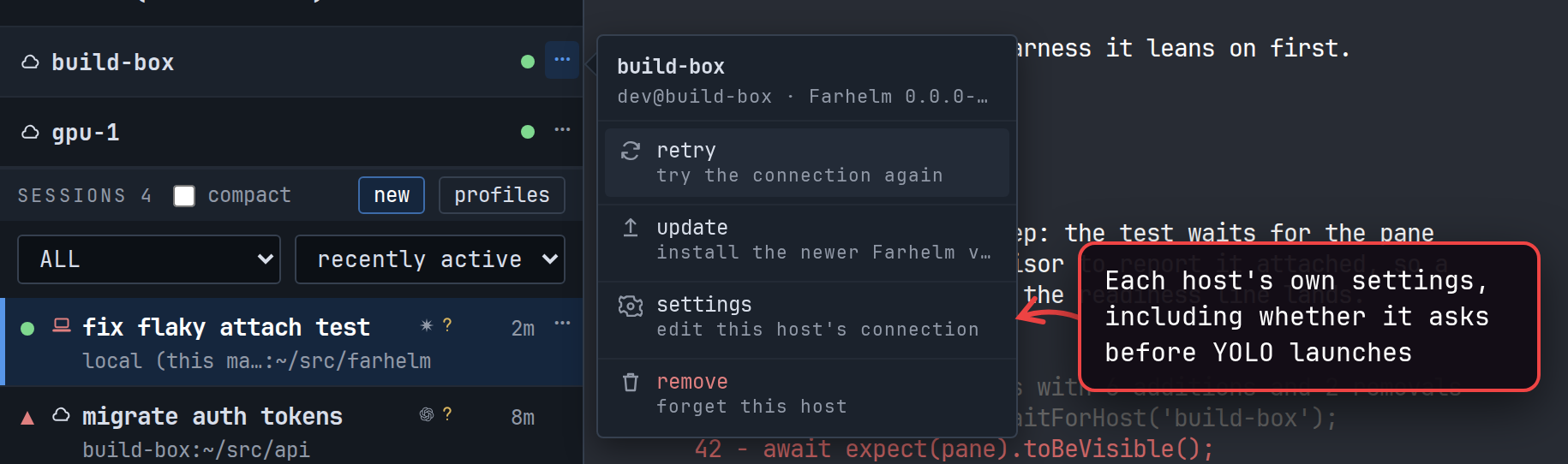
To change your mind about a host later, use its settings. Manage hosts covers the rest of them.
Launch a setup you used before
Section titled “Launch a setup you used before”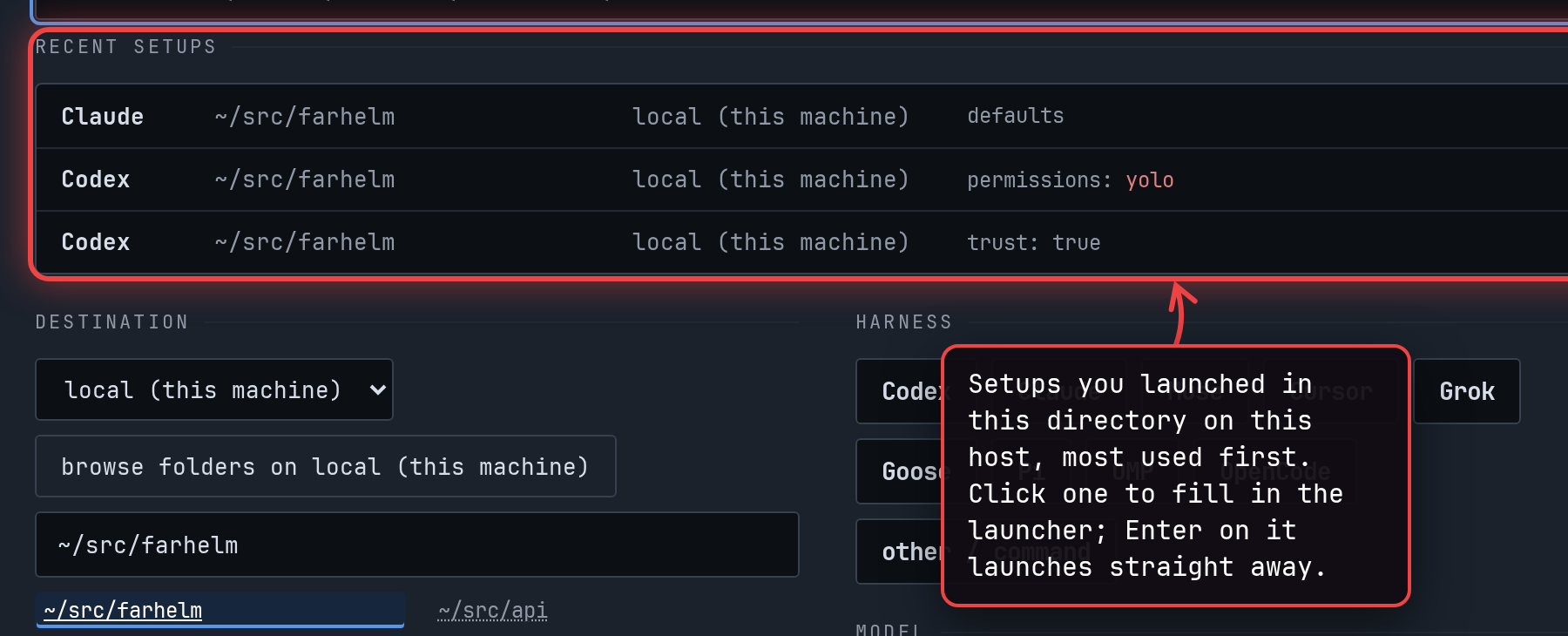
A setup is the agent, model, effort, permissions, trust, and directory of a launch you made with the harness buttons.
Farhelm keeps them separately for each host, and shows up to three; type recent: in the search box to find older ones.
To start another session like one you already have, choose clone from that session’s menu instead. It opens the launcher with that session’s choices already filled in. Stop, restart, and resume covers it, along with replace with….
Search instead of clicking
Section titled “Search instead of clicking”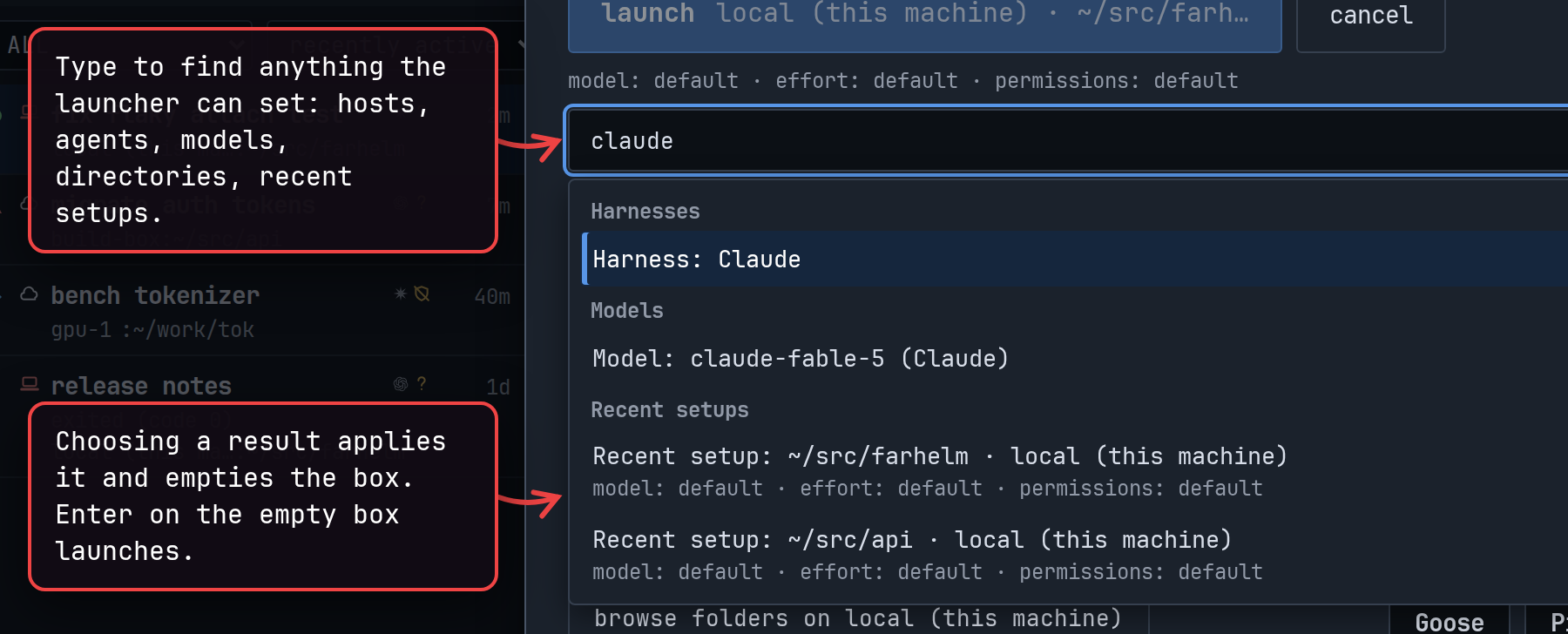
The search box has the keyboard focus when the launcher opens, so you can set up a whole launch without the mouse. Typing a path offers to use it as the directory or to browse it.

gh: is the other prefix that does something no plain search does: it starts a
fresh GitHub checkout. The rest only narrow a search to one kind of thing:
host:, harness:, model:, effort:, perms:, trust:, folder:, and recent:. host:local picks the machine
you are using.
Start from a fresh GitHub checkout
Section titled “Start from a fresh GitHub checkout”A session can also start in a new clone of a GitHub repository instead of an existing directory. Type gh: followed by
the repository as owner/repo in the search box, then choose Fresh checkout: owner/repo. Farhelm suggests
repositories you have launched or cloned before, but it does not search GitHub, so type a new one in full.
Before you launch, the launcher shows the directory the clone will go into, and the launch button waits until it does.
Each checkout gets a new directory of its own, named after the repository and numbered (farhelm-1, farhelm-2, and so
on), or named after the repository and the session if you gave the session a name (farhelm-fix). use existing
folder switches back to an ordinary directory.
When you launch, the clone runs in the session’s terminal, and the agent starts once it finishes. The clone is a plain
git clone of the repository’s default branch, using the host’s own Git credentials, so anything Git asks for, such as
a password, shows up in the terminal for you to answer. If the clone fails, the session’s status shows error, the
terminal says what went wrong, and the partial clone stays where it is.
Fresh checkouts need one setup step first: telling Farhelm which directory new checkouts go into. Create that directory on each host you want to clone on, then run this on the machine that runs the helm (the program that serves the Farhelm app; see The pieces):
farhelm helm checkout-config set-root '~/work'Keep the quotes, so that ~ means the home directory on each host rather than on the machine you run the command on.
Until this is set, the launcher says “no checkout root is configured” where it would show the directory. The same
command can also give one host a different directory, or run a command of your choice in every new clone before the
agent starts (setting up a different version control tool, say); farhelm helm checkout-config --help lists the
options.
When a launch fails
Section titled “When a launch fails”What you see depends on how far the launch got. When Farhelm can tell before starting anything that the launch will not work, for example because the directory does not exist on that host or the host just went offline, it shows the reason at the bottom of the launcher and keeps your choices, so you can fix it and launch again. No session is created. When the agent itself fails to start, for example because it is not installed on that host, the session is created and its status shows error; the agent’s page in Supported agents says what to install. An agent that starts and then quits shows exited. Read the session list explains each status.
With the session running, Work in a session covers talking to the agent in its terminal, and Read the session list covers keeping track of what your sessions are doing.